Dithering for the Web: GIF Export Settings That Avoid Banding
GIF's 256-color palette bands on gradients unless you dither, but the wrong dither settings make the file bigger without fixing the band. Here's the exact…
01/ ARTICLE
What Causes Banding When You Export a GIF?
A GIF frame is limited to a 256-color palette. A smooth gradient needs more steps than that to look continuous. GIF's palette-based architecture caps every frame's colors at up to 256 entries — a ceiling that made sense when the format was designed, but is far short of what a real-world gradient needs. Standard 8-bit-per-channel color gives you 256 levels per channel. Human vision can resolve roughly 14-bit precision in a smooth luma transition, so a gradient rendered straight at 8-bit forces neighboring pixels to jump a full step at the same spot every time. That hard jump is the band you see.
Dithering is the deliberate addition of noise, bounded to about half of one color step, that breaks that hard edge into a transition too fine for the eye to register as a band. The noise added stays within plus-or-minus 0.5 of one quantization step, which is why it can nudge a pixel to the level above or below where it would otherwise land, but never enough on its own to read as visible grain. That bound is the whole trick: enough noise to hide the step, not so much it turns into texture.
Diffusion vs. Pattern vs. Ordered — Which Should You Use for GIF Export?
The three dither families behave differently, and picking the wrong one is the most common reason a "dithered" GIF still looks wrong.
Diffusion (error-diffusion) scatters the rounding error from each pixel into its neighbors as it processes the image. Floyd-Steinberg spreads that error to four nearby pixels. Jarvis-Judice-Ninke spreads it to twelve, for a coarser but cleaner result. Atkinson, developed for the original Macintosh, only diffuses three-quarters of the error, which keeps midtone detail from getting muddy and gives a higher-contrast look than Floyd-Steinberg. If you're exporting a single still frame, this family gets you the smoothest gradient for the least visible pattern. Photoshop's real manual dither settings for a still image are worth knowing end to end — see the honest manual method for dithering in Photoshop — and for the algorithm-by-algorithm breakdown, Floyd-Steinberg vs ordered dithering covers the visual difference directly.
Pattern dithering places pixels in a fixed grid to fake a missing color. Smallest file size of the three, but the repeating grid is the most visible on a smooth gradient. Rarely the right call for anything photographic.
Ordered (Bayer) dithering also uses a fixed matrix, but unlike diffusion, each pixel's threshold comes from a lookup table position rather than from its neighbors. That independence is exactly why it's the right choice for an animated GIF: since the pattern doesn't depend on nearby pixels, it doesn't depend on the previous frame either, so it holds still instead of crawling and flickering as the animation plays. Diffusion dithering, recomputed independently on every frame, produces a pattern that visibly swims. For matrix size, a 4x4 or 8x8 grid smooths a gradient well; a 2x2 grid shows an obvious checkerboard on anything with a slow color transition. See which Bayer matrix size to pick for the settings breakdown.
Rule of thumb: diffusion for a still, ordered for an animation. Export an animated gradient with diffusion dithering because it looked good on frame one, and you'll get a visibly noisy loop.
What Dither Percentage or Strength Actually Removes Banding?
Every real GIF-export tool exposes this same tradeoff, just under a different name. In Photoshop's Save for Web, Diffusion is the only one of the three modes with an adjustable amount — a 0-100% slider. Pattern and Noise have nothing to turn. For a gradient-heavy image, 75-100% reliably eliminates visible steps. Below that, the diffused error isn't dense enough to fill the palette gap, and the band starts to reappear.
Other tools expose the identical control under a different unit. GifTuna calls it "Dither Grid": a low grid value shows more visible cross-hatch pattern but produces less banding; a high value hides the pattern but lets banding creep back in. A dither-strength CLI flag does the same thing as a 0.0-1.0 float. These aren't different problems. They're the same dial with a different label.
| Tool / control | Dither strength unit | Value that kills banding | Tradeoff |
|---|---|---|---|
| Photoshop Diffusion | 0-100% slider | 75-100% | File size rises as the percentage climbs |
| GifTuna Dither Grid | discrete grid size | low grid size | More visible cross-hatch pattern |
| Generic dither CLI | 0.0-1.0 float | 0.6-0.85 | Banding returns below roughly 0.5 |
| Ordered/Bayer matrix | 2x2 / 4x4 / 8x8 | 4x4 or 8x8 for gradients | 2x2 shows an obvious checkerboard |
The pattern across all four rows is the same: find the lowest strength that removes the band you can actually see, and stop there. Pushing further doesn't buy you anything visible.
Why Does More Dithering Make Your GIF File Bigger, Not Smaller?
GIF's LZW compression handles flat, repeating runs of the same color efficiently. Dithering exists to defeat that flatness on purpose — scattering pixel-level noise across the image to fake more colors than the palette actually contains. Those two goals work against each other directly: dithering patterns interfere with the compressibility of the image data, which is the opposite of what LZW needs to do its job.
Here's the counterintuitive part: a heavily dithered gradient can produce a larger file than a solid-color image with no dither at all. Push dither strength past the point where banding disappears, and you keep adding file size with no visual return. If your export tool gives you a live file-size readout, watch it while you drag the dither slider. It climbs the whole way up, but the banding you can actually see stops improving well before 100%. This is the direct explanation for a related failure — see why dithered images break under compression if your export also gets run through a downstream compressor.
How Do You Avoid Double-Dithering on an Already-Dithered Image?
A specific, checkable mistake shows up when a correctly dithered image gets exported through a generic GIF encoder that doesn't know it's already been quantized. The encoder builds its own 256-color palette from the source image and re-maps every pixel onto it — quantizing an image that's already been quantized once. The result: a second round of banding, or a visible color shift, on an image that was fine before that last step.
The fix documented in working GIF-export tools is to build the GIF's palette directly from the exact colors your dithering step already produced, then map each pixel onto that palette without a second reduction pass. Before you export, check whether your tool does this. If the palette step happens after dithering and uses the dithered image's own colors as its source, you're safe. If dithering and palette-reduction are two separate, uncoordinated steps, you're at risk of double-dithering every time.
Frequently Asked Questions
What's the best dither percentage for a GIF export?
For gradient-heavy images, keep Diffusion dithering between 75-100%. Below that range banding starts reappearing as visible steps. The real rule is the least percentage that removes visible banding on your specific gradient, not the maximum, since every added point of dither adds file size once the band is already gone.
Should I use diffusion or ordered (Bayer) dithering for an animated GIF?
Ordered (Bayer) dithering for animation, diffusion for a single still. Error-diffusion algorithms recompute per frame independently, so the dither pattern crawls and flickers across frames. Ordered dithering uses a fixed matrix that doesn't depend on neighboring pixels, so the pattern stays stable frame to frame.
Why did my GIF file get bigger after I added dithering?
GIF's LZW compression works best on flat, repeating color runs. Dithering deliberately breaks those runs into pixel-level variation to fake more colors than the 256-entry palette allows, which is the opposite of what LZW needs to compress well. Past the point where banding disappears, more dither strength only adds file size.
What is double-dithering and how do I avoid it during GIF export?
Double-dithering happens when an already-dithered image gets re-quantized a second time by a generic GIF encoder's own palette-reduction pass, which can reintroduce banding or shift colors. Avoid it by building the GIF's palette directly from the exact colors your dithering step already produced, then mapping each pixel onto that palette with no second quantization pass.
The settings, in one place
Diffusion at 75-100% for a still gradient. Ordered/Bayer at a 4x4 or 8x8 matrix for anything animated. A palette built from the dithered output, not re-quantized after the fact. Everything past those three settings is diminishing returns on file size for no visible gain. Try it on your own gradient in kott's studio with diffusion and ordered dithering preloaded side by side, and watch exactly where your banding disappears.
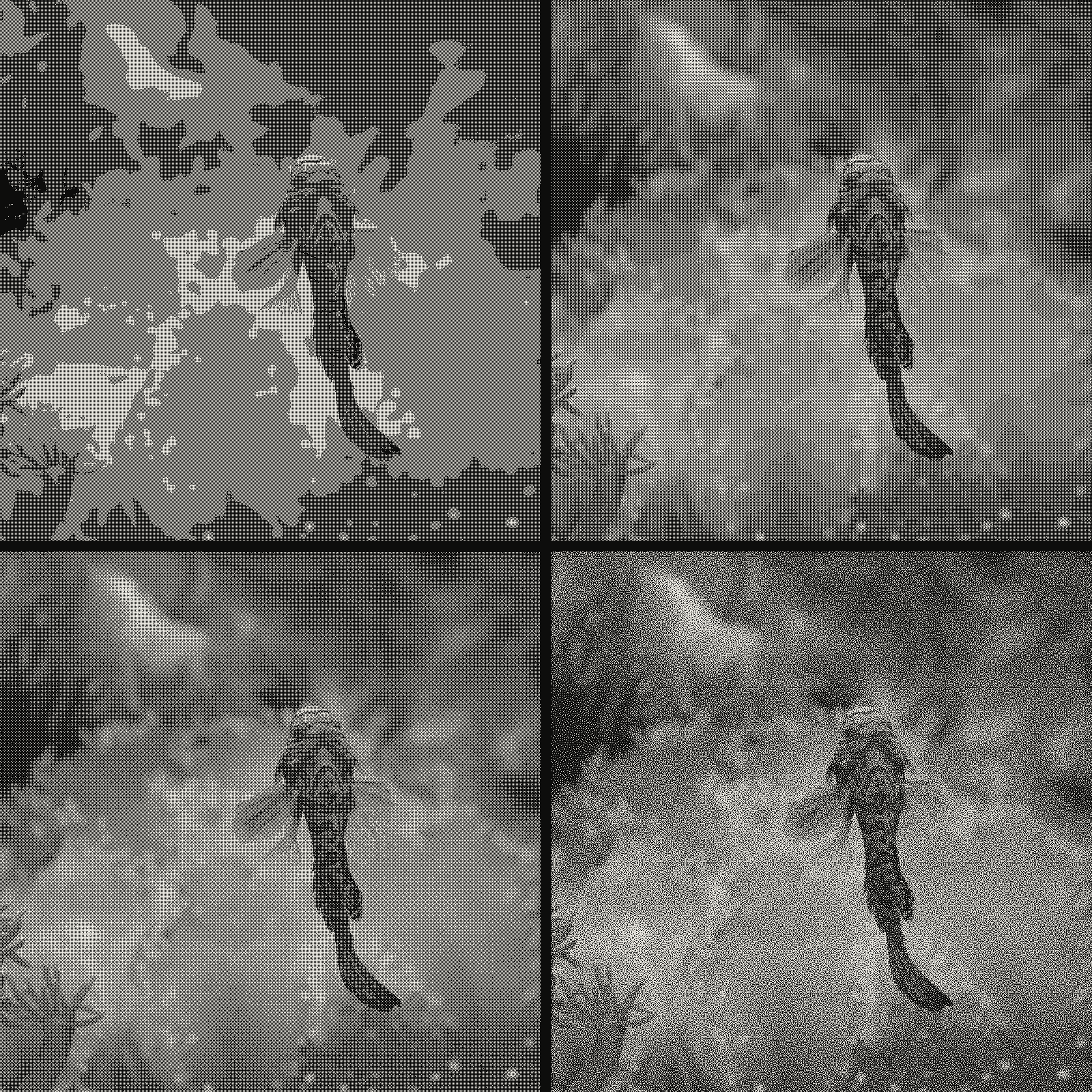 subject: mandarin fish · look: bayer · threshold 0.50 · 1px · reading order: 2x2 matrix / 4x4 matrix / 8x8 matrix / blue noise matrix · Image made with kott.io
Images in this article were made with kott.io.
02/ OUT
Every setting described above is a real control. Open your own image and sweep it.
All journal entries