Screentones in Clip Studio Paint: The Manga Halftone Method and Real LPI Numbers
Clip Studio Paint's screentone is an editable tone layer, not a filter. Here's the real workflow, the 50-60 LPI manga standard, and why it moires after you…
01/ ARTICLE
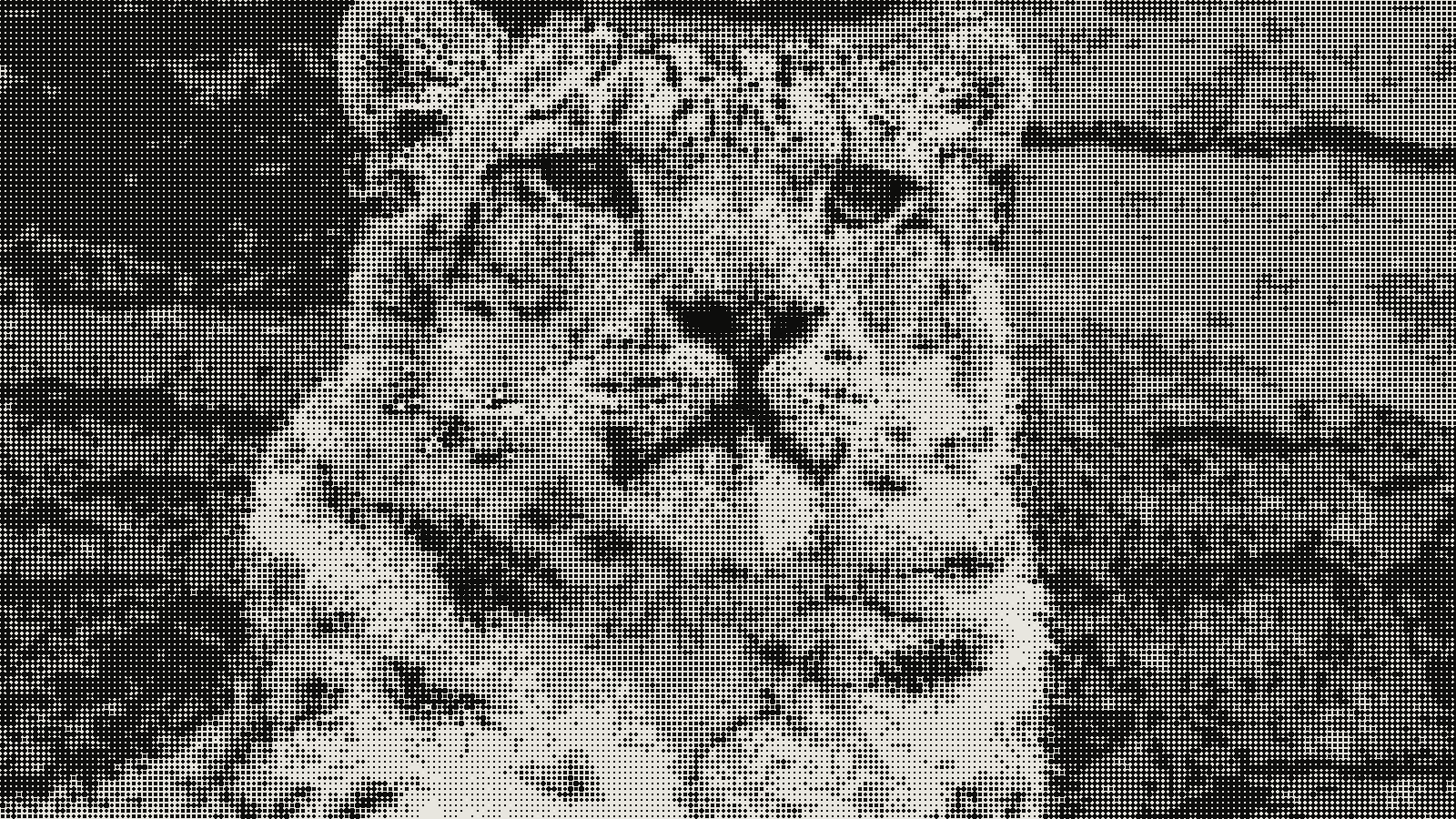 subject: snow leopard · look: halftone · cell 6px · angle 45° · shape circle · Image made with kott.io
How do you create a tone layer in Clip Studio Paint?
A tone layer in Clip Studio Paint is a non-destructive layer type. It renders a dot, line, or noise pattern instead of flat gray, and unlike a filter, its frequency (LPI), density, dot shape, and angle all stay editable after you've already applied it.
The standard path starts with a selection. Use Auto Select, then click "New tone" from the Selection Launcher menu that pops up around it. That pastes a tone layer clipped to your selection, which you refine with a pen or eraser directly on the layer to clean up edges per the official workflow. Nothing about the tone is final at this point - frequency and density both live on the Layer Property panel for as long as the layer exists, so you can return days later and change either one without redrawing a thing.
That editability is also where the most common screentone failure starts. A tone layer stores a frequency number, not a baked raster of dots - so scaling or transforming the layer changes the on-page size of the pattern without updating that stored value. Clean at 100%, moire-prone after a resize: the number on the Layer Property panel no longer matches what's actually rendering per independent walkthroughs of the same mechanics. The fix isn't a setting you flip. It's procedural - reapply the tone at the page's final scale instead of scaling a tone layer you've already placed.
Is there a second way to apply screentone?
Yes. A paint-first workflow skips the Auto Select step entirely. Start a new gray or color layer - not monochrome, or the conversion below won't work - lasso-select the area you want toned, and airbrush in flat gray. At that point you've just got gray paint, nothing more. Open Layer Property, click the screen-tone icon, and that flat gray converts into a dot pattern right there.
The frequency control on that same panel doubles as a dots-per-inch setting. Push it smaller and you get fewer, bigger dots; push it larger and you get more, smaller ones. One threshold is worth remembering word for word: keep the gray value you paint with at 40 or above. Drop below 40 and the conversion spits out a checkerboard artifact instead of a clean dot screen - there isn't enough gray left for the dot algorithm to resolve a real pattern per the official Clip Studio Paint channel's own walkthrough.
And this workflow isn't limited to brush strokes. It works on anything sitting on that layer, including a placed photo - paint over it, convert to tone, then push the result further with Edit > Tonal Correction > Tone Curve, before or after the conversion.
What LPI should you actually use for manga?
50-60 LPI is the standard frequency range for manga screentone. 60 LPI specifically shows up again and again as the default choice across official documentation and real moire post-mortems from working artists. LPI measures how many lines of dots fit into one inch: higher number, smaller and tighter dots; lower number, bigger and more visible ones. Render your canvas at a minimum of 350 DPI so dots at 50-60 LPI resolve cleanly instead of turning muddy or aliased at the pixel level.
Frequency and density are independent controls - not one slider pretending to be two. A worked example applies 40% density at 55 LPI for hair shading, a mid-frequency, mid-darkness combination, while a 5% tone reads as "significantly lighter" and 50% density serves as a general mid-darkness reference point in official tone examples. You pick how dark a tone looks and how fine its dots are separately. The two choices don't have to move together.
Prepping files for an actual press rather than a digital release? LPI gets a second life outside Clip Studio Paint entirely, with its own tradeoffs around underbase and ink choke. See the breakdown of DTF and DTG halftone LPI ranges for the print-production version of this same number.
Why does your screentone moire when it prints fine on screen?
Moire is the interference pattern that shows up when two or more dot patterns overlap. It's not a glitch - it's a predictable collision between frequencies or angles sitting too close together. Two specific triggers produce it in Clip Studio Paint work: overlapping two tones over the same area when they have unequal frequency, or when their angle difference is under 30 degrees; and a printer's own halftone conversion interacting with a screentone already baked into your file per a documented moire fix walkthrough. That second trigger explains the "looks fine on screen, moires when printed" complaint specifically. The printer applies its own halftone on top of yours, and if the two frequencies sit too close together, the interference only becomes visible once both patterns exist on paper together.
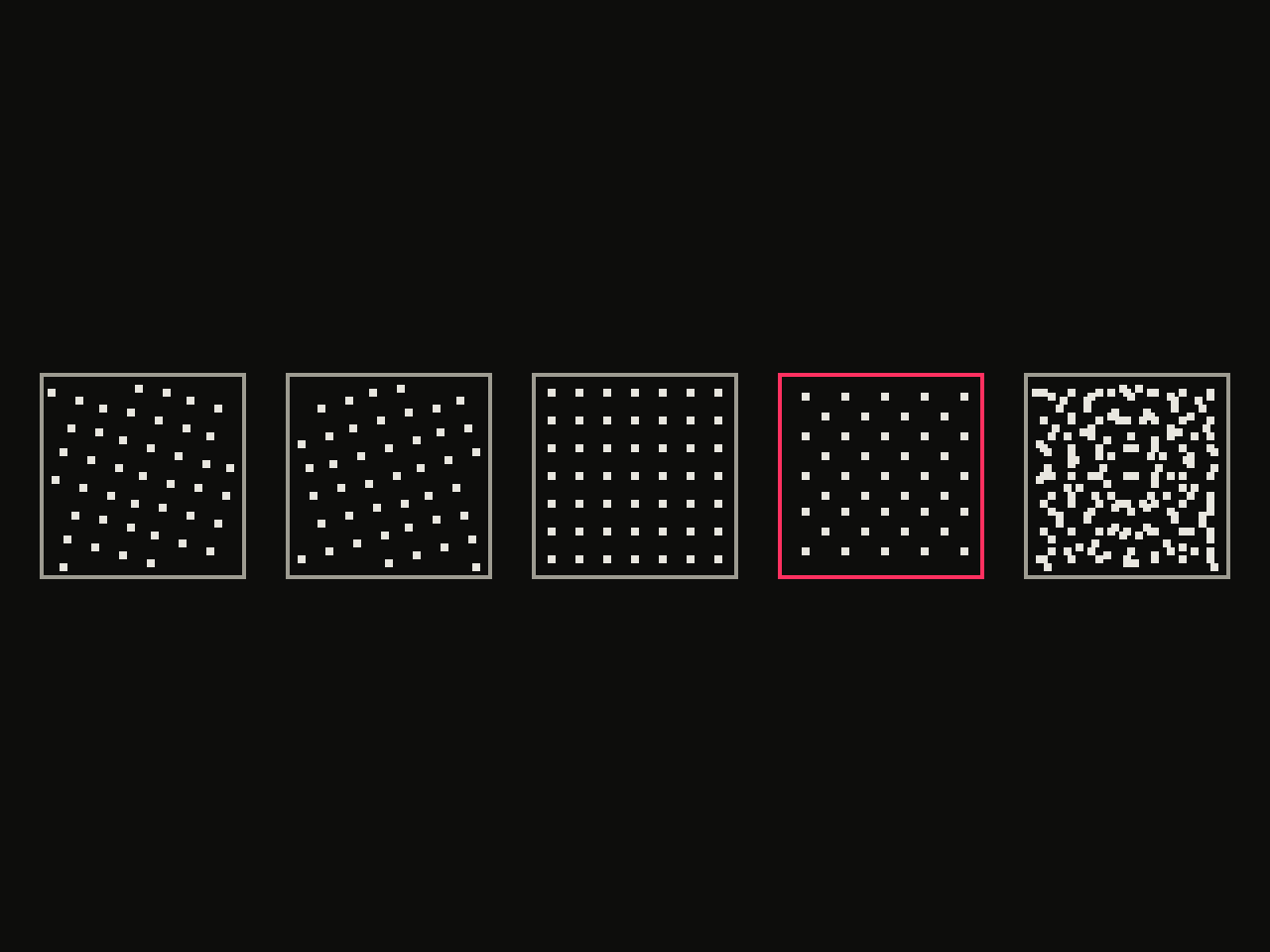 diagram · halftone screens at 15°, 75°, 0°, 45° and their overlay (last panel); outlined: the 45° screen · seed 1
The fix for the printer-interaction case is a frequency gap, not a different setting. Keep at least a 20 LPI difference between your screentone's frequency and the printer's halftone line screen. Don't know the printer's line screen? Pick the most-separated LPI option available to you rather than guessing low. For the overlapping-tones case, the rule is simpler: apply one tone layer per area instead of stacking two different tones over the same region - exactly the trigger described above.
One export setting trips people up on both counts. Enable "tone effect" when exporting for print, so the dot pattern actually rasterizes into the file. Disable it when posting online, so the export renders as flat grayscale instead of a dot pattern that was never meant to survive screen compression at low resolution.
How is this different from a halftone filter effect?
Clip Studio Paint's tone layer and a halftone filter solve different problems, even though both end in dots. Here's how the two approaches line up:
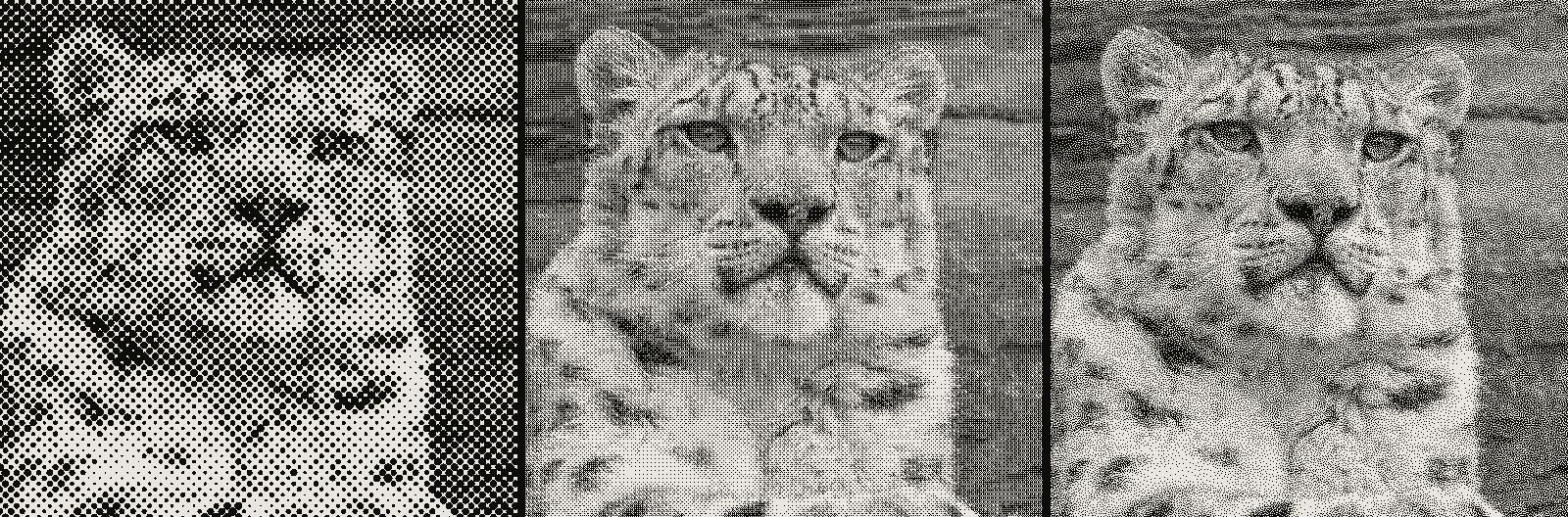 subject: snow leopard · look: halftone / bayer / blue-noise · reading order: halftone cell 8px angle 0° shape circle / bayer 4x4 matrix threshold 0.50 1px / blue-noise threshold 0.50 1px · Image made with kott.io
| Clip Studio Paint tone layer | Halftone filter (Affinity / Photoshop / kott) | |
|---|---|---|
| Input | Line art, flat color, or a placed photo | A photographic or raster image |
| Persistence | Non-destructive layer, re-editable anytime | One-shot conversion, or a live filter re-appliable but not a drawing layer |
| Frequency unit | LPI (lines per inch); manga standard 50-60 | Cell size in pixels, or LPI depending on the tool |
| Angle control | Per-layer, set manually | Per-channel or a single angle, tool-dependent |
| Typical use | Inking and toning a manga page by hand | Converting an existing photo into a halftone look |
Not drawing a page of line art and just want a halftone look on a photo? The filter path is faster for that job specifically - see how the same conversion works as a halftone effect in Affinity Photo or as halftone in Krita through its index color filter mask. Neither approach beats the other outright. They're built for different inputs.
kott's own halftone effect sits on the filter side of that table. It converts a photo into dots with cell size and angle control, right in the browser - useful for a manga-style treatment of a photograph in seconds, but not a substitute for Clip Studio Paint's tone layer if you're actually inking a page by hand. Want to see the dot pattern on a real photo without touching a tone layer at all? That's the faster path.
Frequently Asked Questions
What LPI should I use for a manga page in Clip Studio Paint?
50-60 lines per inch (LPI) is the standard range for manga screentone, with 60 LPI a common default. Render your canvas at 350 DPI or higher so dots at that frequency stay crisp instead of aliasing.
Why does my screentone look fine on screen but moire when printed?
Moire shows up two ways: overlapping two tones with different frequency or less than a 30-degree angle difference between them, or your screentone frequency landing too close to the printer's own halftone line screen. Keep at least a 20 LPI gap between your tone's frequency and the printer's halftone frequency, and never stack two different tones over the same area.
Can I resize a tone layer after applying it?
You can, but it's the most common way screentone breaks. A tone layer stores a frequency number, not a baked dot pattern, so scaling the layer changes the effective on-page LPI without updating that number - a layer that looked clean at 100% can show moire or uneven dots after a resize. Reapply the tone at the final scale instead of scaling an existing tone layer.
What's the difference between Clip Studio Paint's screentone and a Photoshop-style halftone filter?
Clip Studio Paint's tone is a persistent, editable layer type built for line art and manga production - frequency, density, dot shape and angle all stay adjustable after the fact. A halftone filter (Photoshop's Color Halftone, Affinity's Halftone live filter, kott's halftone effect) is a one-shot conversion of a photographic image into dots. They solve different problems: one is a drawing tool, the other is an image effect.
Does kott do what Clip Studio Paint's screentone does?
No, and it isn't trying to. kott's halftone effect converts a photo or flat image into dots with cell size and angle control - good for a manga-style treatment of a photograph in seconds, not for inking a page of line art with an editable tone layer. If you're drawing a manga page by hand, Clip Studio Paint's tone layer is the right tool; if you want a halftone look on a photo without touching a tone layer at all, that's what kott is for.
Try it on your own image
Screentone in Clip Studio Paint is a numeric system - 50-60 LPI, independent density, angles that need 30 degrees of separation - wearing an art tool's interface. Treat those numbers as load-bearing, not aesthetic guesses, and two habits will prevent most of what shows up in moire complaints: never scale an applied tone layer, and keep a real LPI gap between overlapping tones or against your printer's halftone.
Want the halftone look on a photo without touching a tone layer at all? Try kott's halftone effect on your own image - cell size and angle are live sliders, no tone layer required.
Images in this article were made with kott.io.
02/ OUT
Every setting described above is a real control. Open your own image and sweep it.
All journal entries